Microsoft 365 Copilot for Knowledge Workers: Tasks Worth Automating First
Discover which everyday Microsoft 365 tasks deliver the biggest productivity gains when automated with Copilot — from email triage to spreadsheet analysis.
Microsoft 365 Copilot landed with a wave of demos showing it drafting emails, summarising meetings, and rewriting paragraphs inside Word. Two years on, the question has shifted from “what can it do?” to “what should I actually use it for every day?” Not every Copilot feature is worth a spot in your workflow — some save seconds, others save hours. The difference depends on where you start.
Why Copilot changes the calculation for knowledge workers
The tasks worth automating first are the ones that combine high frequency with low personal value — the reading, sorting, formatting, and summarising that pads every working day. Copilot handles these by grafting an AI layer into the apps you already use, rather than forcing you to learn a new tool. As Microsoft’s Copilot overview explains, it works inside Word, Excel, Outlook, Teams, and PowerPoint, drawing on your existing Microsoft 365 data without requiring you to switch context.
That integration matters. A standalone AI chat tool requires you to copy, paste, and re-explain context. Copilot already has access to your calendar, your emails, your documents, and your chat history (subject to the permissions you set). The result is less friction per task — and when you multiply that by dozens of small interactions a day, the time saved compounds.
Email triage: the highest-ROI starting point
For most knowledge workers, email is the single biggest time sink that Copilot can meaningfully reduce. The Outlook integration lets you summarise long threads, suggest replies, and coach your tone — all without leaving the inbox.
| What you would do manually | What Copilot does | Time saved per thread |
|---|---|---|
| Read a 20-message thread to catch up | ”Summarise this thread” in one click | 3–5 minutes |
| Draft a polite but firm reply from scratch | ”Draft a reply that declines the request but offers alternatives” | 2–3 minutes |
| Read an email and decide whether it needs action | Copilot flags action items automatically | 30–60 seconds per message |
| Search inbox for a specific attachment or detail | ”Find the budget spreadsheet Sarah sent last month” | 1–2 minutes |
The “summarise this thread” feature is the one most people should learn first. It reduces recovery time after a day out of the office from forty-five minutes of scrolling to thirty seconds of reading. Coach by Copilot — which suggests alternative phrasing when your draft sounds abrupt — is a close second for anyone who sends sensitive client correspondence.
Try using Copilot in Outlook for your own inbox:
Summarise the unread emails in my inbox since yesterday afternoon. Group them by: action required, FYI only, and can be archived. For the action items, suggest a one-sentence reply I can send now.Document drafting without starting from scratch
Word’s Copilot integration is effectively an AI writing assistant that already knows your organisation’s templates and style. The most practical use is turning rough notes into a first draft — not because the AI delivers a finished document, but because it removes the blank page’s cognitive weight.
| Scenario | Copilot input | Copilot output |
|---|---|---|
| Weekly status report | Bullet points of what you did | Formatted report with headings and placeholders |
| Project proposal | Three sentences about the idea | Structured proposal with sections for budget, timeline, risk |
| Client follow-up email | Key points to cover | Draft email with professional tone matching your past style |
The trick is to treat Copilot’s first draft as a scaffold, not a final deliverable. Refine the structure, swap in your own examples, and adjust the tone. That process is still faster than writing from nothing, and it sidesteps the most common form of writer’s block — staring at a blinking cursor.
If you want Copilot to match a specific document style, try:
Create a one-page project update based on these notes. Use the same heading style and tone as the document [paste a link to a previous report]. Include a status table with RAG colour coding.Spreadsheet analysis without the formula headache
Excel is where Copilot surprises people. The natural-language layer lets you ask questions about your data instead of hunting through nested formulas or pivot table menus. For spreadsheet users who are not analysts by trade — which describes most managers, founders, and operations leads — this alone justifies the subscription.
Start with the kinds of questions you would ask a colleague who knows the spreadsheet:
Highlight rows where the revenue figure is more than 20% below the quarterly target. Add a new column showing the percentage variance. Then create a chart that groups the results by region.Copilot translates that request into the appropriate formulas, conditional formatting rules, and chart types behind the scenes. You get the output without writing =IF(D2<E2*0.8,"Flag","OK") or remembering how to build a grouped bar chart.
| Task | Old approach | Copilot approach |
|---|---|---|
| Find outliers in a column | Write a conditional formatting rule from memory | ”Highlight cells more than 2 standard deviations from the mean” |
| Create a pivot table | Drag fields, guess the layout, retry | ”Show me average deal size by sales rep, grouped by quarter” |
| Build a forecast chart | Research the right formula, plot manually | ”Forecast next quarter based on the last 12 months of data” |
| Clean messy data | Write formulas to strip whitespace, fix formats | ”Remove duplicate rows and format the date column consistently” |
The formula translation alone saves hours for anyone who opens Excel a few times a month and has to re-learn the syntax each time.
Meeting recaps you actually want to read
Teams meeting summaries are Copilot’s most underrated feature. The AI generates a structured recap that includes the transcript, key discussion points, action items with named owners, and a timeline of decisions — all without anyone taking notes.
This is especially valuable for afternoon meetings after a morning of deep work, or for any cross-time-zone call you attended while distracted. The recap lands in your Teams chat or Outlook automatically, searchable alongside the meeting invite.
| Feature | What it captures |
|---|---|
| Transcript | Full verbatim text, searchable and timestamped |
| Notes | Auto-generated summary of the discussion, organised by topic |
| Action items | Tasks extracted from the conversation, assigned to named individuals |
| Decisions | Key conclusions recorded with the context that led to them |
The action-item extraction makes it stick. Copilot identifies phrases like “Dave will send the draft” or “Sarah owns the budget review” and turns them into tracked to-dos, which you can export to Microsoft Planner or To Do. No more relying on someone sending “notes from today’s call” three hours later.
One caveat worth knowing
Copilot works best on structured, text-heavy tasks. It is weaker on highly creative writing, nuanced negotiation, or anything requiring subjective judgement about a specific relationship or audience. The model’s suggestions are grounded in general patterns, not your specific rapport with a client or your team’s unwritten rules about how a particular document should read.
Treat Copilot as a capable assistant that handles the legwork — drafting, summarising, formatting, sorting — and leave the final polish and context-sensitive judgement to yourself. That division of labour is where the productivity gain lives.
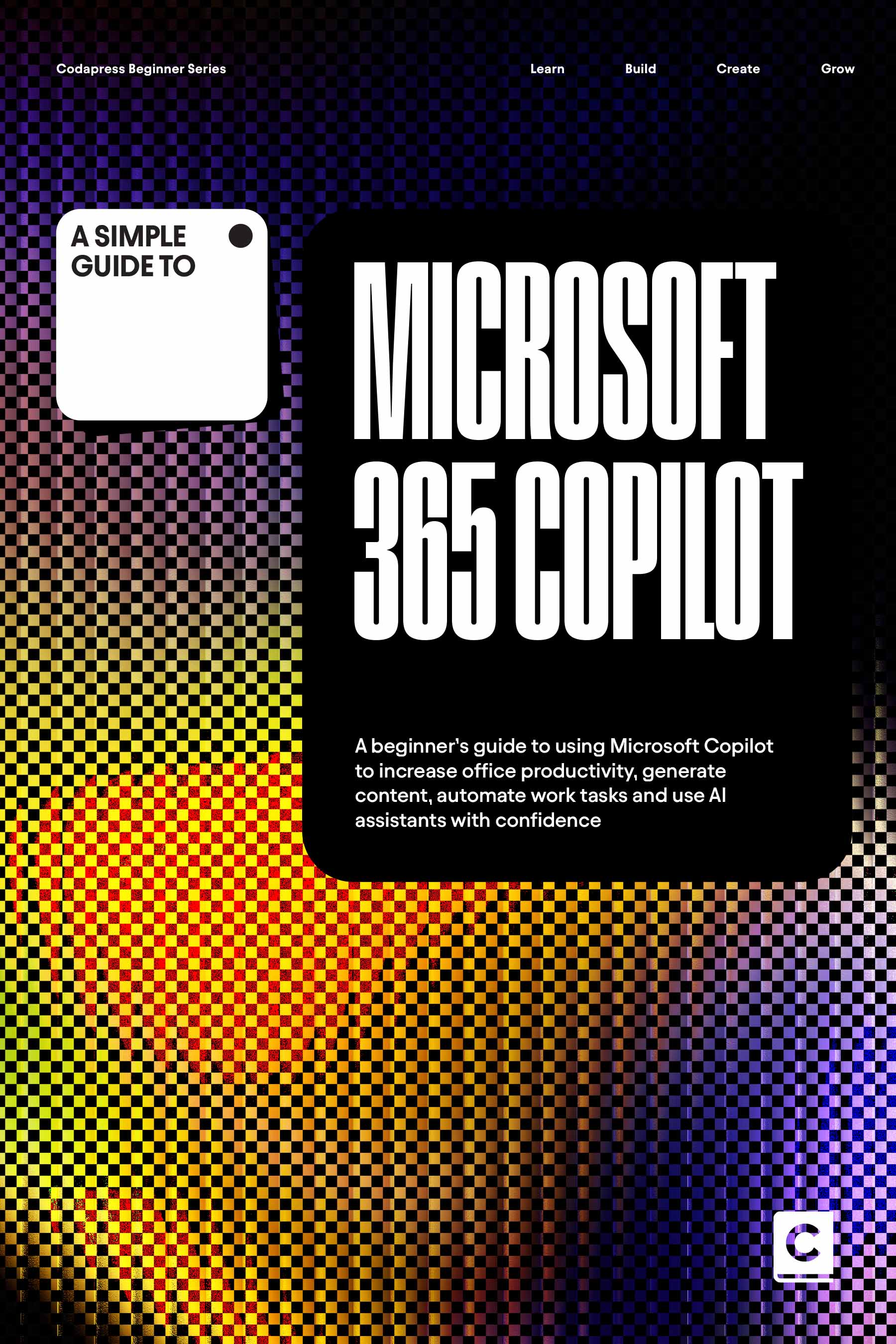
A Simple Guide to Microsoft365 Copilot walks through each of these integrations in more detail, with real workflow examples and the prompts that get the best results. If you are still deciding which feature to try first, start with email summarisation in Outlook — it is the lowest-effort, highest-impact entry point for most knowledge workers.
More insights
All ArticlesJavaScript for Vibe Coders: The Minimum You Need to Read What the AI Wrote
Learn just enough JavaScript to read AI-generated front-end code — variables, functions, DOM basics, and the red flags that mean you should ask again.
Read articleLearn Python with AI Without Skipping the Fundamentals
Use Copilot and chat to learn Python faster — without skipping syntax, debugging habits, or the fundamentals that make AI output trustworthy.
Read articleA 90-Day Roadmap for Rolling Out Agentic Coding on Your Team
Roll out agentic coding without the chaos — a phased plan that gives your team standards, governance, and a rollout pace they can actually sustain.
Read articleContext Windows, Memory, and Why Your AI Keeps "Forgetting" the Project
Discover why your AI loses track of your project mid-session and how context windows, memory files, and smart prompting keep conversations on track.
Read article